Showing posts with label Software Linux. Show all posts

Sunday, October 16, 2016

Geary: A Great Email Client For Ubuntu/Linux Mint

Nobslab.Net - Geary klien Email saya oleh pengembang yang sama yang menciptakan aplikasi Shotwell, sangat ringan dan open source alternatif pembaca email ke Thunderbird dan lain-lain. Geary bekerja dengan layanan webmail yang paling populer, termasuk Gmail, Yahoo, dan Outlook, serta memberikan dukungan IMAP, dan SMTP yang berarti Anda dapat men-setup layanan e-mail IMAP manual untuk penyedia lainnya. Pada dasarnya itu terinspirasi dari webmail klien seperti Gmail, mengatur mail ke 'percakapan' daripada benang. Gaya percakapan threading membuat hal-hal rapi dan rapi - sangat berguna pada milis.

Anda dapat menambahkan beberapa account untuk Geary dan Cari mail per akun, itu auto-save draft email dan dukungan untuk menonaktifkan rancangan tabungan ke server, built-in Keamanan alat cek keluar link untuk konten berbahaya, di sidebar ini akan menampilkan jumlah yang belum dibaca per folder, pilihan untuk beralih di antara kolom 2 atau 3 kolom layout.


Geary: A Great Email Client For Ubuntu/Linux Mint
Fitur: 
  • Men-setup account mudah dan cepat
  • Penuh kaya Terpilih HTML email komposer
  • Dukungan untuk beberapa akun
  • Mendukung Gmail, Yahoo! Mail, Outlook.com, dan server IMAP yang populer (Dovecot, Cyrus, Zimbra, dll.)
  • Mail yang menyelenggarakan sebagai percakapan, tampilan balasan Anda dalam percakapan
  • Memungkinkan Anda membalas langsung dalam percakapan atau jendela terpisah pop-out
  • Cara pintas keyboard dan tanda tangan dukungan
  • Latar belakang men-download pesan
  • Lampiran mengirim menerima dukungan
  • Visual dan terdengar pemberitahuan pesan baru
  • Kesatuan Launcher menghitung, desktop pemberitahuan email baru
  • E-mail alamat autocompletion
  • Integrasi Menu pesan
  • Dukungan SSL dan STARTTLS
  • Sekarang memungkinkan untuk tindakan 'Undo' arsip, sampah dan bergerak
  • Pencarian cepat

Catatan: Geary juga tersedia dalam repositori default Ubuntu tetapi PPA berisi versi terbaru. Untuk Ubuntu 12.04 Precise Linux Mint 13 menggunakan hanya ketiga perintah untuk menginstal dari repositori Ubuntu.

Tersedia untuk derivatif Ubuntu Ubuntu 16,04 Xenial 15,10 Wily 14,04 Trusty Linux Mint 18/17.x/other
Untuk menginstal Geary di Ubuntu Linux Mint Buka Terminal (tekan Ctrl + Alt + T) dan menyalin perintah berikut dalam Terminal:


Demikian Artikel tentang Geary: A Great Email Client For Ubuntu/Linux Mint yang bisa kami sampaikan ke pada kalian semua semogo bisa bermanfaan dan Jika anda Meyukain Artikel ini Jangan Lupa untuk Like Fand Page Kami dan Share agar bisa bermaaf buat semua nya Trimakasih

NoNotifications: Use Do Not Disturb Feature In Ubuntu

Nobslab.Net - Jika Anda mencoba untuk fokus pada pekerjaan Anda dan tidak ingin menonaktifkan pemberitahuan benar-benar maka di sini adalah sebuah alat yang disebut "NoNotifications" untuk Anda, yang bekerja di Ubuntu kesatuan. Ini adalah hanya sebuah indikator panel sederhana yang memungkinkan Anda untuk menonaktifkan pemberitahuan sementara. Alat ini harus ditingkatkan untuk menawarkan lebih banyak fitur seperti mobile OS sudah memiliki, untuk sepenuhnya menonaktifkan semuanya seperti: nada, Alert, pemberitahuan, dan begitu, dan jadwal waktu untuk mengaktifkan/menonaktifkan bisa menjadi nilai tambah bagi hal ini aplikasi kecil.
Tidak ada banyak terjadi pada dengan utilitas ini bukan dari panel menawarkan hanyalah dua pilihan "Tidak mengganggu" dan "Tampilkan Notifikasi", Anda dapat memilih apa saja yang perlu dipilih dan ikon pada panel menunjukkan apakah itu diaktifkan atau tidak.


NoNotifications: Use Do Not Disturb Feature In Ubuntu

Untuk menginstal NoNotifcations di Ubuntu 16,04 Xenial 15,10 Wily 14,04 Trusty Buka Terminal (tekan Ctrl + Alt + T) dan menyalin perintah berikut dalam Terminal:


Demikian Artikel tentang NoNotifications: Use Do Not Disturb Feature In Ubuntu yang bisa kami sampaikan ke pada kalian semua semogo bisa bermanfaan dan Jika anda Meyukain Artikel ini Jangan Lupa untuk Like Fand Page Kami dan Share agar bisa bermaaf buat semua nya Trimakasih

Saturday, October 15, 2016

Google Earth For Ubuntu/Linux Mint, Easy Installation Method (64bit / 32bit)

Nobslab.Net - Google Earth adalah sebuah dunia maya, peta, dan program informasi geografis yang awalnya disebut EarthViewer 3D dibuat oleh Keyhole, Inc. Ini adalah aplikasi gratis yang memungkinkan pengguna untuk terbang dari luar angkasa ke lingkungan Anda, mencari sekolah, Restoran, Taman dan Hotel, mendapatkan mengemudi arah, dan banyak lagi. Google Earth menempatkan sebuah planet senilai citra dan informasi geografis lain tepat di desktop Anda. Dengan Google Earth menjelajahi, mencari dan menemukan planet. Dengan Google Earth Anda dapat terbang ke mana saja untuk melihat citra satelit, bangunan 3D, pepohonan 3D, Medan, Street View, planet-planet dan banyak lagi.

Terbang melalui kota 3D; Menyelam untuk melihat dunia di jalan dengan pemandangan jalan terpadu; Gunakan panduan wisata untuk menemukan menarik tempat-tempat baru untuk mengeksplorasi; Jelajah lapisan seperti Wikipedia atau foto untuk mempelajari lebih lanjut tentang tempat; Kunjungi Galeri Maps untuk menemukan menarik peta, misalnya plot real-time gempa bumi, pesawat dalam penerbangan, lihat jalur hiking dan banyak lagi.


Google Earth For Ubuntu/Linux Mint, Easy Installation Method (64bit / 32bit)

Google Earth For Ubuntu/Linux Mint, Easy Installation Method (64bit / 32bit)

Google Earth For Ubuntu/Linux Mint, Easy Installation Method (64bit / 32bit)

Ketergantungan lsb-inti hilang dari repositori Xenial 16.04, jadi saya membuat script sederhana untuk instalasi di Ubuntu Linux Mint apapun dan untuk 16,04 itu akan menarik lsb-inti dari repositori Ubuntu cerdik.

Tersedia untuk Ubuntu 16,04 Xenial 15,10 Wily 14,04 Trusty 12.04 Precise Linux Mint 17.x/17/13/and derivatif Ubuntu lainnya (64 bit/32 bit)
Untuk menginstal terbaru Google Earth di Ubuntu Linux Mint Buka Terminal (tekan Ctrl + Alt + T) dan menyalin perintah berikut dalam Terminal:


If you see Ugly fonts in Google Earth then install MSttCoreFonts using following command:

Demikian Artikel tentang Google Earth For Ubuntu/Linux Mint, Easy Installation Method (64bit / 32bit) yang bisa kami sampaikan ke pada kalian semua semogo bisa bermanfaan dan Jika anda Meyukain Artikel ini Jangan Lupa untuk Like Fand Page Kami dan Share agar bisa bermaaf buat semua nya Trimakasih

Insync: An Unofficial Google Drive Client For Linux/Ubuntu/Linux Mint (Plus Account For Free - Limited Time Offer)

Nobslab.Net - Jika Anda menggunakan Google drive untuk menyimpan data dan akses di seluruh perangkat Anda maka Anda mungkin tahu bahwa ada klien tidak resmi yang tersedia untuk Linux. Ada klien tidak resmi yang tersedia seperti Grive, Insync, Grive-alat, dan Syncdrive (yang tidak lagi fungsional-obsoleted tetapi adalah klien besar, dirilis and dikelola oleh pengembang Pear OS).
Pada dasarnya klien adalah sebuah front-end Google drive yang sync file antara account dan komputer kamu. Hari ini kita akan melihat di Insync yang lain klien tidak resmi yang sempurna yang menawarkan sebagian, lintas platform tersedia untuk Linux, Windows dan Mac.

Ini melestarikan hirarki direktori Anda: Anda telah menghabiskan minggu dan bulan yang mengatur sistem Anda. Tentu saja, Anda ingin mereka dipertahankan. Insync memungkinkan Anda untuk terhubung ke Google Drive tanpa mengorbankan integritas direktori.
Bekerja sempurna dengan Microsoft Office: kadang-kadang seorang rekan ingin menggunakan Google Docs dan kadang-kadang Anda ingin menggunakan Microsoft Office. Insync otomatis mengkonversi antara Google Docs dan Microsoft Office sehingga Anda mendapatkan yang terbaik dari kedua dunia.
Menggunakan hard drive eksternal sebagai cadangan foto: kenangan Anda penting. Menjaga mereka secara permanen di Google Drive tetapi akses mereka secara lokal drive eksternal.
Berbagi foto dan video menggunakan link: berbagi foto dan video secara publik atau pribadi menggunakan link. Hanya klik kanan dan berbagi. Super mudah.

Insync: An Unofficial Google Drive Client For Linux/Ubuntu/Linux Mint (Plus Account For Free - Limited Time Offer)

Insync: An Unofficial Google Drive Client For Linux/Ubuntu/Linux Mint (Plus Account For Free - Limited Time Offer)

DOWNLOAD INSYNC

Anda dapat memadukan insync dengan manajer file Anda, tersedia untuk Nautilus, Nemo, lumba-lumba, Caja dan Thunar. Pertama Instal Insync kemudian menjalankan perintah pemutahiran kemudian menginstal perintah untuk manajer file. 


Jika Anda menggunakan 16,04 Ubuntu (64 bit) dan Insync tidak dimulai kemudian jalankan perintah ini untuk memperbaikinya: 


Demikian Artikel tentang Insync: An Unofficial Google Drive Client For Linux/Ubuntu/Linux Mint (Plus Account For Free yang bisa kami sampaikan ke pada kalian semua semogo bisa bermanfaan dan Jika anda Meyukain Artikel ini Jangan Lupa untuk Like Fand Page Kami dan Share agar bisa bermaaf buat semua nya Trimakasih

Monday, October 10, 2016

Xtreme Download Manager For Ubuntu/Linux Mint Via PPA

Xtreme Download Manager Kami sebelumnya berbagi sebagian besar digunakan download manajer untuk Linux, tetapi xdman adalah manajer download besar lain yang tersedia. Xtreme download manager sangat kuat utilitas yang memiliki kemampuan untuk meningkatkan kecepatan download sampai 500% (tergantung pada koneksi), itu dapat jeda/mingguan bahkan patah mingguan dapat melanjutkan, xdman juga memiliki fungsi untuk mengambil video dari internet dan menawarkan jadwal mingguan. Xdman dapat mengintegrasikan dengan browser untuk mengelola download secara otomatis dengan menggunakan browser maju integrasi.
Xtreme Download Manager menggunakan algoritma canggih segmentasi yang dinamis, kompresi data dan koneksi menggunakan kembali untuk mempercepat proses download. Xtreme Download Manager mendukung HTTP, HTTPS dan protokol FTP, firewall, proxy server, file pengalihan, cookie, otorisasi dll. Xtreme Download Manager terintegrasi dengan browser untuk menangani mingguan secara otomatis menggunakan browser maju integrasi.


Fitur:

  • Download file pada kecepatan maksimum yang mungkin. (5 - 6 kali lebih cepat, tergantung pada koneksi)
  • Algoritma segmentasi file dinamis yang canggih, kompresi data & koneksi menggunakan kembali.
  • Download FLV, MP4, HTML5 video dari seluruh web.
  • Menangkap download dari browser (Firefox, Chrome, Internet Explorer, Opera, Safari atau program lain yang mencoba untuk men-download file dari Internet)
  • Mendukung HTTP, HTTPS, FTP protokol dengan otentikasi, Server Proxy, cookie, pengalihan dll.
  • Jeda/mingguan patah mati yang disebabkan oleh masalah koneksi, daya kegagalan atau sesi kedaluwarsa.
  • Dibangun pada video downloader, monitor lalu lintas HTTP, Batch downloader.
  • Dapat dikonfigurasi untuk melakukan Antivirus otomatis memeriksa, sistem shutdown fitur pada download selesai.
  • Berjalan di setiap O.S dengan Java SE 6 atau lebih.


Tersedia untuk Ubuntu 16,04 Xenial 15,10 Wily Ubuntu 14,04 Trusty Ubuntu 12.04 Precise Linux Mint 17.x/13/and derivatif Ubuntu lainnya

Untuk menginstal Xtreme Download Manager di Ubuntu Li


Demikian Artikel tentang Xtreme Download Manager For Ubuntu/Linux Mint Via PPA yang bisa kami sampaikan ke pada kalian semua semogo bisa bermanfaan dan Jika anda Meyukain Artikel ini Jangan Lupa untuk Like Fand Page Kami dan Share agar bisa bermaaf buat semua nya Trimakasih 

Credits: xdman

Monday, September 23, 2013

Install Clementine Player in Ubuntu 13.04/12.10/12.04/11.10/11.04/10.10/10.04/Linux Mint and other

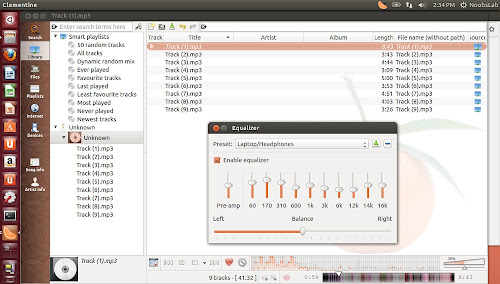
Clementine is a modern music player and library organizer. It is cross-platform audio player available for Linux, Windows, and Mac. This player is inspired by Amarok 1.4, focusing on a fast and easy-to-use interface for searching and playing your music.

Install Clementine Player in Ubuntu 13.04/12.10/12.04/11.10/11.04/10.10/10.04/Linux Mint and other
Features:
  • Search and play your local music library.
  • Listen to internet radio from Spotify, Grooveshark, Last.fm, SomaFM, Magnatune, Jamendo, SKY.fm and Digitally Imported, and Icecast.
  • Create smart playlists and dynamic playlists.
  • Tabbed playlists, import and export M3U, XSPF, PLS and ASX.
  • CUE sheet support.
  • Play audio CDs.
  • Visualisations from projectM.
  • Lyrics and artist biographies and photos.
  • Transcode music into MP3, Ogg Vorbis, Ogg Speex, FLAC or AAC.
  • Edit tags on MP3 and OGG files, organise your music.
  • Fetch missing tags from MusicBrainz.
  • Download missing album cover art from Last.fm and Amazon.
  • Native desktop notifications on Linux (libnotify) and Mac OS X (Growl).
  • Remote control using a Wii Remote, MPRIS or the command-line.
  • Copy music to your iPod, iPhone, MTP or mass-storage USB player.
  • Queue manager.

What's new in this version:
  • Major features:
    • Added support for indexing and playing music from Box, Dropbox, Skydrive, and Ubuntu One.
    • Added support for Subsonic.
    • Remote control support for Android.
    • Add a Playlist tab to the sidebar. Starred playlists are saved in here when their tabs are closed.
  • Other features:
    • Added configurable blur & opacity to album art when used as a playlist background.
    • Support Opus where available.
    • Support .mka and .oga file extensions.
    • Parsing support for WPL playlists.
    • Sort providers by user preference.
    • Added year and bitrate to MPRIS2 messages.
    • Added "not equals" operator to fields in the smart playlist wizard.
    • Added an option to write ratings, play count and scores to files.
    • Added options to show the rating and score on the OSD.
    • Added support for POPM tags.
    • Added support for FMPS tags in Ogg, FLAC, MP4 and ASF files.
    • Compile the bundled Taglib with ASF, MP4 and Opus support.
    • Make it possible to cancel cover searches.
    • Added an option to resume playback on startup.
    • Added support for Performer and Grouping tags.
    • Added Radio GFM.
    • Added an Apply button to the settings dialog.
    • Make it possible to mark all episodes of a podcast as new/listened.
    • Added an option for fading in/out on pause/unpause.
    • Added stereo balance slider to the equalizer.
    • Added a --restart-or-previous commandline flag.
    • Allow files to be transcoded directly from the playlist.
    • Export downloaded album covers
  • Bug fixes:
    • Fix gapless playback!
    • Detect corrupt FLAC files when parsing tags.
    • Load tags from local files asynchronously.
    • Show more than 5 album results at a time from Spotify.
    • Detect last.fm login failures correctly.
    • Support x-audio/* mime types for podcasts.
    • Locale-aware library sorting.
    • Remove duplicate tracks from Spotify search results.
    • Do not fetch Magnatune library until the service is expanded.
    • Sort Magnatune library after refresh.
    • Make the playlist parser recognise 2 character URL schemes.
    • Read and write more metadata for MP4 tags.
    • Translate Unity quicklist actions.
    • Fix a memory leak when fingerprinting songs.
    • Preserve user stats when opening the edit tag dialog.
    • Fix neverending task when a Grooveshark session is invalid.
    • Elide the fancy sidebar text on the right instead of the middle.
    • Increase the maximum size of the moodbar cache.
    • Use a new Amazon access key.
    • Select the next tab when a playlist tab is closed.
    • Fix radio playlists in non-English locales.
    • Fix cursor following playback.
    • Hide moodbar playlist column by default.
    • Use native language names in the language selector where available.
    • Only show a tooltip on sidebar tabs when needed.
    • Never start playing a background stream (like Hypnotoad) on startup.
    • Run the moodbar generation at a lower CPU and IO priority.
    • Pressing space with the seekbar focused now toggles play/pause.
    • Update tray icon progress immediately on track change.
    • Don't replace song metadata with blank m3u EXTINF metadata.
    • Fix a bug when fingerprinting files with non-ascii characters.
    • Fix occasional freezing analyzers.
    • Make wheel events on the analyzer change the volume.

To install Clementine in Ubuntu/Linux Mint open Terminal (Press Ctrl+Alt+T) and copy the following commands in the Terminal:


Terminal Commands:
sudo add-apt-repository ppa:me-davidsansome/clementine-dev
sudo apt-get update
sudo apt-get install clementine

That's it

Install Curlew Multi-Converter in Ubuntu 13.10/13.04/12.10/12.04/11.10/Linux Mint and other

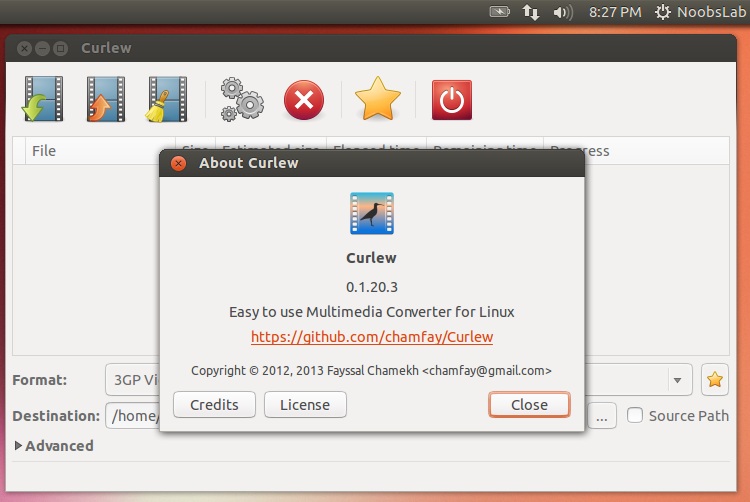
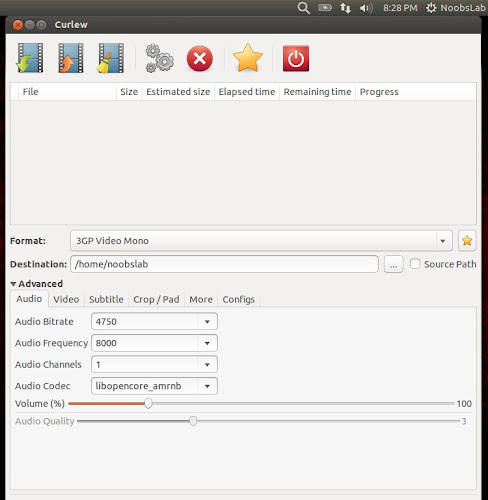
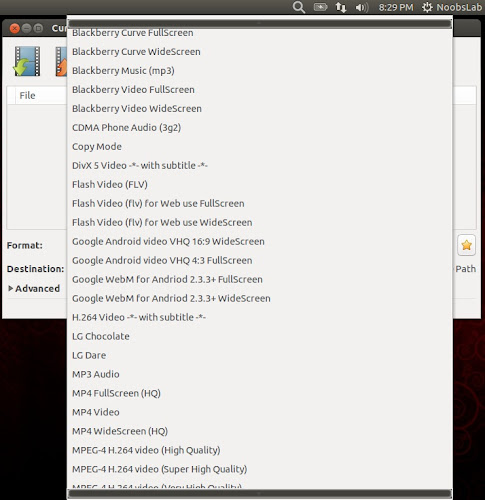
Curlew is multi-converter tool, it is based on ffmpeg. Curlew is easy to use, free and open-source multimedia converter for Linux. Curlew converter can convert to over 117 different formats. Curlew written in python and GTK3 and it depends on (ffmpeg/avconv, mencoder).

Main Features:


  • Easy to use with simple user interface.
  • Hide the advanced options with the ability to show them.
  • Convert to more than 100 different formats.
  • Show file informations (duration, remaining time, estimated size, progress value).
  • Allow to skip or remove file during conversion process.
  • Preview file before conversion.
  • Convert a specified portion of file.
  • Combine subtitle with video file.
  • Show error details if exist.
  • And more ...
Install Curlew Multi-Converter in Ubuntu 13.10/13.04/12.10/12.04/11.10/Linux Mint and other
 
Install Curlew Multi-Converter in Ubuntu 13.10/13.04/12.10/12.04/11.10/Linux Mint and other
New in this Version:
  • Added Spanish and Italian languages.
  • Sorted languages list.
  • Updated Czech and basque translation.
  • Added information sidebar (image preview with some infos.).
  • Removed tooltip infos (used sidebar instead).
  • Enhancements and bugs fixes.

To install Curlew in Ubuntu/Linux Mint open Terminal (Press Ctrl+Alt+T) and copy the following commands in the Terminal:


Terminal Commands:
sudo add-apt-repository ppa:noobslab/apps
sudo apt-get update
sudo apt-get install curlew

That's it 
Source: Curlew

Saturday, September 14, 2013

Nuvola cloud player 2.1.0 released, Install it in Ubuntu/Linux Mint/other Ubuntu derivatives

Nuvola Player runs a web interface of cloud music services in its own window and provides integration with a Linux desktop (multimedia keys, system tray, media player applets, dock menu, notifications and more).Nuvola Player is an open-source project licensed under GNU GPL 3 and written mainly in Vala (the core) and JavaScript (service integrations).
What's new in this release:
  • Player will show a warning when a missing plugin is detected.
  • Added information about format support.
  • New service Deezer.
  • Extensions: Almost all extensions are enabled by default.
  • Notifications extension: Added support for actions and resident notifications.
  • Last.fm extension: Added switches to disable scrobbling for particular services.
  • Added a few keyboard shortcuts: Go back <shift><alt>Left and go forward <shift><alt>Right.
  • Service selector is opened in a separate window and uses native GTK+ widgets instead of web view. GTK+ zoom level is respected and non-free screenshots are not loaded.
  • User interface: Added option to prefer dark GTK+ theme.
  • Context menu of a web view is populated with custom actions.
  • Removed UI modes "toolbar only" and "both toolbar and menubar". Main menu reorganized.
  • MPRIS extension: Renamed to Remote Player Interface.

Fixes in this release:
  • Fixed bug when configuration was not saved with buids without debugging symbols.
  • nuvolaplayer-client provides better error message when MPRIS interface is not enabled.
  • Nuvola Player loads only a compatible flash plugin wrapped with nspluginwrapper.
  • Lyrics extension: Split diacritics from letters when creating AZLyrics name.
  • Amazon Cloud Player: Support more countries.
  • Thumbs UP/Down actions shouldn't toggle status.
  • Run-in-background feature no longer requires tray icon.
  • Web view respects text zoom factor and remembers zoom level per service.
  • Google Play: Fixed links "Shop this artist" and related to be opened in a default web browser.
  • Notifications: Pass actual album art image data over dbus instead of a filename to prevent caching.
  • 8tracks: Service integration was adopted by Michael J Coyne. Fixed breakage (alert loop) caused by a change in 8tracks web interface.
  • Google Play: Fixed resolving of a name and an artist of the current song.
  • Amazon Cloud Player: Recent changes in Amazon Cloud Player introduced Amazon marketing redirect. Sandbox pattern has been updated to reflect these changes.
  • Rdio 3.0: Service integration was adopted by Michael Mims and relicensed under 2-Clause BSD license. Service switched to Flash-based playback instead of HTML5. Fixed low initial volume. Fixed resolving of the current artist and song.
  • Services selector: If the currently running service is upgraded/downgraded it is immediately reloaded, so it isn't necessary to restart Nuvola Player.
  • Google Play: Google Play web interface has been changed many times introducing breakages in Hide Google bar feature, parsing of song details, playback status and available actions.
  • Google Play: Google Play UI has changed and shows also album name of the current song,so it's possible to pass it to Nuvola core.
  • Google Play: Flash plugin has been enabled, because Google Play Music All Access feature requires it (HTML5 audio is not supported).
  • 8tracks: updated metadata parsing.
  • PopupWebView: Pop-up windows were sometimes unusable, because page area was tiny and rest of the window was empty.
  • MPRIS can-go-next/prev actions weren't updated because of a bug.
  • The Google Music interface had a space between the play controls and the bottom of the app when "Hide Google Bar" is checked. Fixed.
  • Google Play: Fixed detection of playback status.
  • Google Play: Fixed thumbs up/down actions broken by recent Google Play web ui update.
  • Service is reloaded after installation/removal of an update package.
  • Google Play: Fix that small red notification box.
  • Added hack that allows user to disable GStreamer for a particular service.
  • Fixed Last.fm name.
  • Don't remember and use small window size.

To install Nuvola Player in Ubuntu/Linux Mint open Terminal (Press Ctrl+Alt+T) and copy the following commands in the Terminal:


Terminal Commands:
sudo add-apt-repository ppa:nuvola-player-builders/stable
sudo apt-get update
sudo apt-get install nuvolaplayer

Download source from here for other Distributions.
Source: Nuvola player

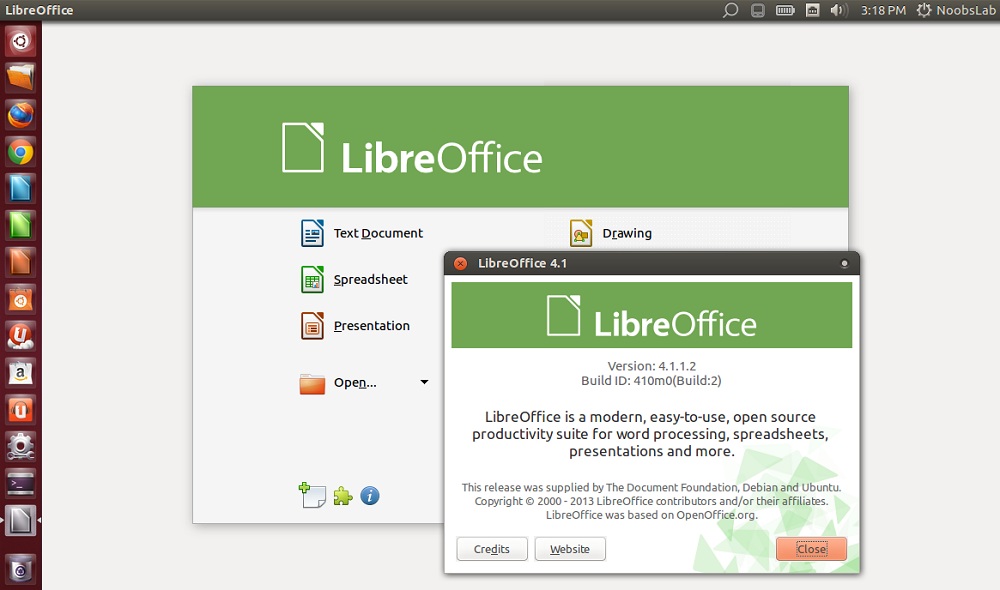
LibreOffice 4.1.1 released, Install in Ubuntu/Linux Mint/other Ubuntu derivatives

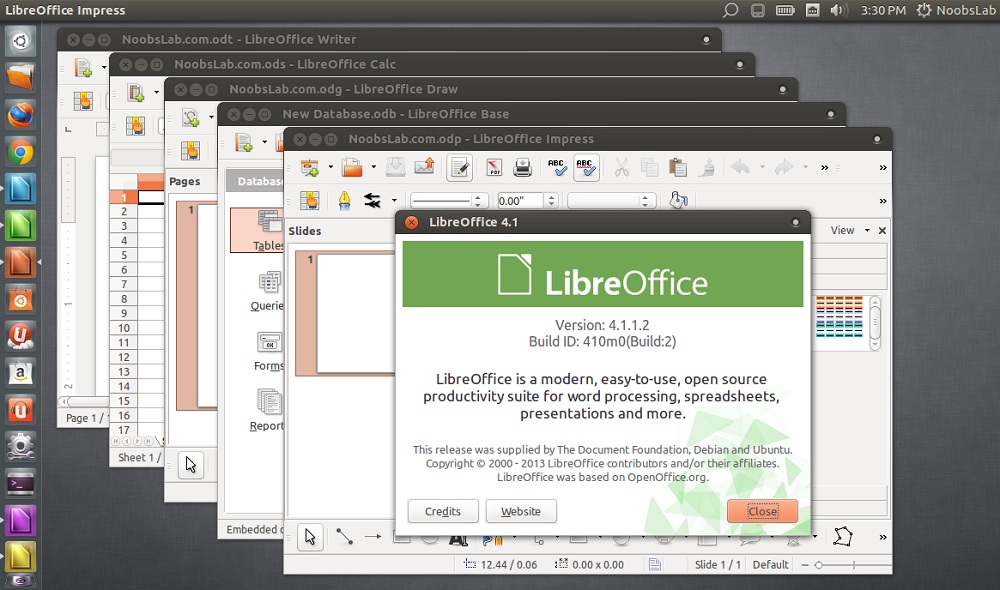
LibreOffice is the power-packed free, libre and open source personal productivity suite for Windows, Macintosh and GNU/Linux, that gives you six feature-rich applications for all your document production and data processing needs: Writer, Calc, Impress, Draw, Math and Base. Support and documentation is free from our large, dedicated community of users, contributors and developers.

LibreOffice 4.1.1 released, Install in Ubuntu/Linux Mint/other Ubuntu derivatives

LibreOffice 4.1.1 released, Install in Ubuntu/Linux Mint/other Ubuntu derivatives

LibreOffice 4.1.1 released, Install in Ubuntu/Linux Mint/other Ubuntu derivatives

New Features and Fixes:
  • Turning off 'Same content on first page' does not reflect in UI
  • Can't select other fill than color in Writer --> Drawing functions
  • REPORTBUILDER - The labels displayed in some options lists do not match the functionality
  • 4.1 segfaults when checking for extension updates
  • FILESAVE: Saving to XLS format omits to save formula expressions of cells where the formula result is an error
  • Style font is not stored for ODG and ODP files: after editing a style, closing and reponening, it is changed
  • can't save new autocorrect entries
  • MAILMERGE: Pre-Defined Labels Contain No Format Info in LO 4.1.0.4
  • EDITING: BUG: calc crashes on spell check
  • soffice.bin segfault in libvclplug_gtklo.so killed by signal 11 (SIGSEGV)
  • the GCJ Java variant has known issues with LibreOffice, we advise to e.g. use OpenJDK instead.
  • LibreOffice 4.x drops a few long-deprecated features, including support for legacy binary StarOffice files, export to legacy Word and Excel (version 6.0/95), and legacy ODMA document management.
  • Some menu entries have changed or added. If you miss something, that may be due to the use of customised menu settings from your previous LibreOffice installation.

Note: This PPA doesn't have support for Ubuntu 12.10 Quantal/and related derivatives

To Install LibreOffice in Ubuntu/Linux Mint open Terminal (Press Ctrl+Alt+T) and copy the following commands in the Terminal:


Terminal Commands:
sudo add-apt-repository ppa:libreoffice/libreoffice-4-1
sudo apt-get update
sudo apt-get install libreoffice
Download LibreOffice for other Distro's, That's it

LightDM locker stable released, Install it in Ubuntu 13.10 Saucy/13.04 Raring

Light-Locker is simple locker designed to work with LightDM, it is forked of gnome-screensaver and it's aims to have secure, simple, and well integrated lock-screen with the desktop.
Basically light-locker relies on LightDM for lock and unlock session via ConsoleKit/UPower or logind/systemd.
LightDM locker stable released, Install it in Ubuntu 13.10 Saucy/13.04 Raring

LightDM has built-in support for user-switching and session-locking, however it doesn't actually lock your session. Meaning if you switch users, LightDM will re-spawn on a new TTY. If your active TTY is VT7 then it'll re-spawn on VT8. So theoretically users can go back to their supposedly locked session with Ctrl+Alt+F7. This is where light-locker steps in. It really locks your session (standing on the shoulders of years of testing and security of gnome-screensaver, of which it was forked) and forwards you back to the LightDM greeter in case you really end up on your locked session VT.

Requirements by developers:
To use light-locker with systemd, you need at least lightdm 1.7.0.
Light-locker doesn't work with lightdm version 1.7.5-1.7.9

Note:
We tested Light-Locker also with LightDM 1.6.0 version and it works perfectly with that version.
While testing it we used Gnome Shell, Unity, Cinnamon and it worked without any problem. We had hard time to get it work with KDE and XFCE.


1: First of all check which LightDM version you have in your system via this command:

Terminal Commands:
lightdm --version

Don't install it, if you have 1.7.5-1.7.9 version. 2: To install Light-Locker in Ubuntu 13.10/13.04 open Terminal (Press Ctrl+Alt+T) and copy the following commands in the Terminal:
Terminal Commands:
sudo add-apt-repository ppa:light-locker/release
sudo apt-get update
sudo apt-get install light-locker

3: Once installed log-out and login back then enter following command in Terminal:
Terminal Commands:
sudo ln -s /usr/bin/light-locker-command /usr/bin/gnome-screensaver-command

After installation of light-locker, it will auto-start along with session and you will be able to lock your session.  

4: Now you can lock your screen with this shortcut (Ctrl+Alt+L) or Here is terminal command to lock screen:
Terminal Commands:
light-locker -l

If you want to remove it simply enter these commands in terminal:
Terminal Commands:
sudo apt-get remove light-locker
sudo apt-get install gnome-screensaver

That's it 
Source: Light Locker

Wine 1.7.1 available for Ubuntu/Linux Mint/other Ubuntu derivatives

Wine lets you run Windows software on other operating systems. With Wine, you can install and run these applications just like you would in Windows. Wine enables Linux, Mac, FreeBSD, and Solaris users to run Windows applications without a copy of Microsoft Windows. Wine is free software under constant development. Other platforms may benefit as well.

Changes in this release:
  • Support for keyed event objects.
  • Support for the "init once" synchronization mechanism.
  • Activation context support for DLLs, typelibs, and COM classes.
  • Support for loading 32-bit typelibs on 64-bit.
  • Various Mac driver fixes.
  • Some fixes for serial port devices.
  • Support for vertical text in the Postscript driver.
  • Version 2 of liblcms used now instead of version 1.
  • Unicode data updated to Unicode 6.2.0.
  • Hyperlink controls supported in installers.
  • Improved support for XML attributes.
  • Various bug fixes.

Install Winehq 1.7.1 via PPA in Ubuntu/Linux Mint open Terminal (Press Ctrl+Alt+T) and copy the following commands in the Terminal:


Terminal Commands:
sudo add-apt-repository ppa:ubuntu-wine/ppa
sudo apt-get update
sudo apt-get install wine1.6 winetricks

Install Winehq 1.7.1 from source in Ubuntu 13.04 Raring/13.10/Linux Mint 15 open Terminal (Press Ctrl+Alt+T) and copy the following commands in the Terminal:
Terminal Commands:
sudo apt-get install flex bison qt4-qmake
wget http://prdownloads.sourceforge.net/wine/wine-1.7.1.tar.bz2
tar -xjvf wine-1.7.*
cd wine-1.7.*
>> For 32bit: Terminal Commands:
./configure
cd tools; ./wineinstall
>> For 64bit: Terminal Commands:
./configure --enable-win64
cd tools; ./wineinstall

Install Wine 1.7.1 from source in Ubuntu 12.10/12.04/11.10/Linux Mint 14/13/12/Debian open Terminal (Press Ctrl+Alt+T) and copy the following commands in the Terminal:
Terminal Commands:
sudo apt-get install flex bison qt3-dev-tools qt4-qmake
wget http://prdownloads.sourceforge.net/wine/wine-1.7.1.tar.bz2
tar -xjvf wine-1.7.*
cd wine-1.7.*
>> For 32bit: Terminal Commands:
./configure
cd tools; ./wineinstall
>> For 64bit: Terminal Commands:
./configure --enable-win64
cd tools; ./wineinstall
You can download source of Wine 1.7.1 for other Distributions from Source Forge.
Wine stable versions available: Wine 1.6, Wine 1.5 (PPA, Source) and Wine 1.4
That's it