Showing posts with label Thema. Show all posts

Monday, October 10, 2016

Wallch 4: Wallpaper Manager (Live Clock) For Ubuntu/Linux Mint Via PPA

Wallch adalah utilitas gratis wallpaper untuk Linux, menawarkan antarmuka pengguna grafis ramah pengguna untuk mengelola latar belakang desktop. Pengembang memperkenalkan wallpaper jam dan web yang hidup dalam versi Wallch 4.0. Wallch adalah aplikasi open source yang memungkinkan setiap orang untuk men-download dan memodifikasi kode sesuai kebutuhan. Mendukung semua besar Linux Desktop seperti kesatuan, Gnome, LXDE, XFCE, dan pasangan.
Tidak hanya mengubah latar belakang desktop Anda dengan wallpaper yang Anda miliki di hard disk Anda, meskipun. Sementara itu tidak bahwa baik oleh pemantauan folder yang telah Anda pilih untuk foto baru atau dihapus, ia memiliki banyak fitur, seperti gambar hari, Live Earth, Wallpaper jam dan Live Website!


Wallch 4: Wallpaper Manager (Live Clock) For Ubuntu/Linux Mint Via PPA


Wallch 4: Wallpaper Manager (Live Clock) For Ubuntu/Linux Mint Via PPA


Wallch 4: Wallpaper Manager (Live Clock) For Ubuntu/Linux Mint Via PPA


Wallch 4: Wallpaper Manager (Live Clock) For Ubuntu/Linux Mint Via PPA


Wallch 4: Wallpaper Manager (Live Clock) For Ubuntu/Linux Mint Via PPA


Wallch 4: Wallpaper Manager (Live Clock) For Ubuntu/Linux Mint Via PPA


Wallch 4: Wallpaper Manager (Live Clock) For Ubuntu/Linux Mint Via PPA

DOWNLOAD LIVE CLOCK WALLPAPERS
Untuk menginstal Wallch 4.x Ubuntu 16,04 Xenial/15,10 Wily/derivatif Buka Terminal (tekan Ctrl + Alt + T) dan menyalin perintah berikut dalam Terminal:


>>> Wallch 4.x tersedia untuk 17.x/17 Ubuntu 14,04 Trusty Tahr Linux Mint Untuk menginstal Wallch 4.x di Ubuntu Linux Mint Buka Terminal (tekan Ctrl + Alt + T) dan menyalin perintah berikut dalam Terminal:


>>> Catatan: Wallch versi 3.x tidak menawarkan fitur wallpaper clock/web hidup. Untuk menginstal Wallch 3.x di Ubuntu 12.04 Precise Linux Mint 13 Buka Terminal (tekan Ctrl + Alt + T) dan menyalin perintah berikut dalam Terminal:


Demikian Artikel tentang Wallch 4: Wallpaper Manager (Live Clock) For Ubuntu/Linux Mint Via PPA yang bisa kami sampaikan ke pada kalian semua semogo bisa bermanfaan dan Jika anda Meyukain Artikel ini Jangan Lupa untuk Like Fand Page Kami dan Share agar bisa bermaaf buat semua nya Trimakasih

Saturday, October 8, 2016

Cinnamon 3.0 Released, Install In Ubuntu 16.04 Xenial/15.10 Wily

Cinnamon adalah GTK +-berbasis lingkungan desktop. Ini awalnya dimulai sebagai sebuah garpu dari Shell GNOME, yang awalnya dikembangkan oleh (dan untuk) dan antarmuka pengguna Linux Mint. Kayu manis menyediakan banyak fitur, termasuk: efek Desktop, termasuk animasi, applet, Desklets, dan efek transisi; Sebuah panel bergerak yang dilengkapi dengan menu utama, peluncur, daftar jendela dan system tray; Berbagai ekstensi; Applet yang muncul di panel; Ikhtisar dengan fungsi-fungsi yang mirip dengan yang di GNOME Shell; dan pengaturan editor untuk kustomisasi mudah. Dapat menyesuaikan: panel, kalender, tema, efek Desktop, applet, ekstensi.


http://www.linuxer.ml/2016/10/cinnamon-30-released-install-in-ubuntu.html 

Mint tim merilis versi baru 3.0 kayu manis dengan perbaikan bug dan fitur baru, kaya pengaturan untuk meningkatkan desktop menggunakan kayu manis Control Center. Di versi 3.0, dan mirip dengan pasangan atau Xfce, kayu manis adalah seluruh lingkungan desktop yang dibangun di atas teknologi GNOME. Masih menggunakan alat-alat dan perpustakaan seperti GTK atau kekacauan dan masih kompatibel dengan semua aplikasi GNOME, tapi itu tidak lagi memerlukan GNOME sendiri untuk diinstal. Sekarang berkomunikasi langsung dengan backend layanan, Perpustakaan dan setan sendiri: kayu manis-desktop, kayu manis-sesi dan kayu manis-setelan-daemon. Versi baru ini akan tampil dalam Linux Mint 18 direncanakan keluar segera.

Rilis Highlights

Perbaikan pengelolaan jendela pada ubin, pemetaan dan unmapping windows, komposer di jendela grup dan pelacakan jendela layar penuh
Ditingkatkan dari kotak touchpad dukungan (tepi-bergulir dan dua-jari-bergulir dapat sekarang dikonfigurasi secara independen dan keduanya diaktifkan secara default)
Setelan aksesibilitas dan suara baru (keduanya ditulis ulang sebagai asli kayu manis-pengaturan modul)
Perangkat bertenaga baterai yang dapat diganti
Aplikasi favorit yang berbeda dapat sekarang diatur untuk teks biasa, dokumen dan file kode sumber
Panel peluncur sekarang termasuk tindakan aplikasi
Efek animasi sekarang diaktifkan secara default pada dialog dan menu
Favorit dan sistem pilihan sekarang dapat dinonaktifkan dalam menu applet
Desklet bingkai foto sekarang juga memindai subdirektori
Meningkatkan dukungan untuk GTK 3,20 Spotify 0,27, Viber

Instalasi Desktop
Cinnamon
Peringatan: Jika Anda telah menginstal aplikasi Linux Mint, pertama-tama menghapus yang terlebih dan PPA dari sistem Anda.

Untuk menginstal 3.0 Cinnamon di Ubuntu 16,04 Xenial/15,10 Wily lain related derivatif Buka Terminal (tekan Ctrl + Alt + T) dan menyalin perintah berikut dalam Terminal:


Ada masalah dengan shutdown dialog menu, Anda dapat memperbaikinya dengan perintah ini (sumber): 


Me-restart sistem Anda atau hanya logout untuk melihat efek.

Untuk mencopot pemasangan kayu manis, masukkan perintah ini pada Terminal:

Thursday, October 24, 2013

Zen Suite Themes available for Ubuntu/Linux Mint via PPA (GTK + Xfce)

Zen Suite contains simple themes and visually attractive, this suite support GTK+ 2, GTK+3, and Xfce. Zen suite has eight variants with different color schemes (Zen, Zen-bicolor, Zen-blua, Zen-griza, Zen-nigra, Zen-nokto, Zen-verda, Zen-papero). This suite has no metacity by itself, so I added another great looking metacity to all variants.

zen suite

zen suite

zen suite

zen suite

zen suite

zen suite

zen suite

zen suite

To install Zen-Suite in Ubuntu/Linux Mint open Terminal (Press Ctrl+Alt+T) and copy the following commands in the Terminal:


That's it
Source: Zen suite, metacity

FS-icons for Ubuntu/Linux Mint/other Ubuntu derivatives

Fs-Icons are specially designed for Ubuntu, It looks nice with every dark or light themes. Fs-Icons now contains 4 sets also include dark mono icons for light panels. You can switch between them for your theme compatibility. These icons are still in Alpha version, hopefully they will release these icons soon. If you found any missing icon, Report to the developer from given source link. Personally I like these Icons for everyday use. Checkout collection.

Fs-Version
FS-icons for Ubuntu/Linux Mint/other Ubuntu derivatives
Fs-megypt Version
FS-icons for Ubuntu/Linux Mint/other Ubuntu derivatives
Fs-Sky Version
FS-icons for Ubuntu/Linux Mint/other Ubuntu derivatives
Fs-uva Version
FS-icons for Ubuntu/Linux Mint/other Ubuntu derivatives

To install FS-Icons in Ubuntu 13.10/13.04/12.10/12.04/Linux Mint 16/15/14/13 open Terminal (Press Ctrl+Alt+T) and copy the following commands in the Terminal:


To install FS-Icons in any Previous Ubuntu/Linux Mint open Terminal (Press Ctrl+Alt+T) and copy the following commands in the Terminal:


That's it
Source: FS Icons

Numix Theme for Ubuntu/Linux Mint/other Ubuntu derivatives (GTK + XFCE + Cinnamon)

Numix theme is designed by satya164 for GTK, It is kind of flat theme with the combination of dark and light elements. It works perfect with all current GTK versions 3.8/3.6/3.4, and it support Unity, Gnome, Openbox and also has XFCE theme.
Numix cinnamon theme is inspired by GTK version and it looks same like GTK. Numix cinnamon has two versions, one for bottom panel and other for Top Panel, You can change as per your requirement. It is compatible with all Cinnamon versions.
icons used in screenshots.
You can use  to change icons.

Numix Theme for Ubuntu/Linux Mint/other Ubuntu derivatives (GTK + XFCE + Cinnamon)

Numix Theme for Ubuntu/Linux Mint/other Ubuntu derivatives (GTK + XFCE + Cinnamon)

What's new:
  • Support for Client Side Decorations
  • Initial support for GTK3 widgets in Xfce
  • Made the OSD dark in Openbox
  • Backported the mutter theme to metacity
  • Added styles for header bar, app notifications, selection mode & OSD
  • Fixed selection checkboxes in GNOME Documents
  • Lots of fixes and enhancements

To install Numix theme on Ubuntu/Linux Mint open Terminal (Press Ctrl+Alt+T) and copy the following commands in the Terminal:


That's it

A new theme Delorean Dark Stripped released for Ubuntu/Linux Mint/other Ubuntu derivatives [GTK 3]

Delorean Dark Stripped theme is new one from family of it is combination of black and gray colors with glossy layout and stripped pattern. This theme uses very few resources and work faster, unlike other delorean themes it doesn't include steel background. Some other resources also removed from this theme like individual tree-view. It is works with GTK 3.6 and GTK 3.8 versions.
You can use to change theme.

A new theme Delorean Dark Stripped released for Ubuntu/Linux Mint/other Ubuntu derivatives [GTK 3]

A new theme Delorean Dark Stripped released for Ubuntu/Linux Mint/other Ubuntu derivatives [GTK 3]

A new theme Delorean Dark Stripped released for Ubuntu/Linux Mint/other Ubuntu derivatives [GTK 3]

To install Delorean-Dark-Stripped theme on Ubuntu/Linux Mint open Terminal (Press Ctrl+Alt+T) and copy the following commands in the Terminal:


That's it

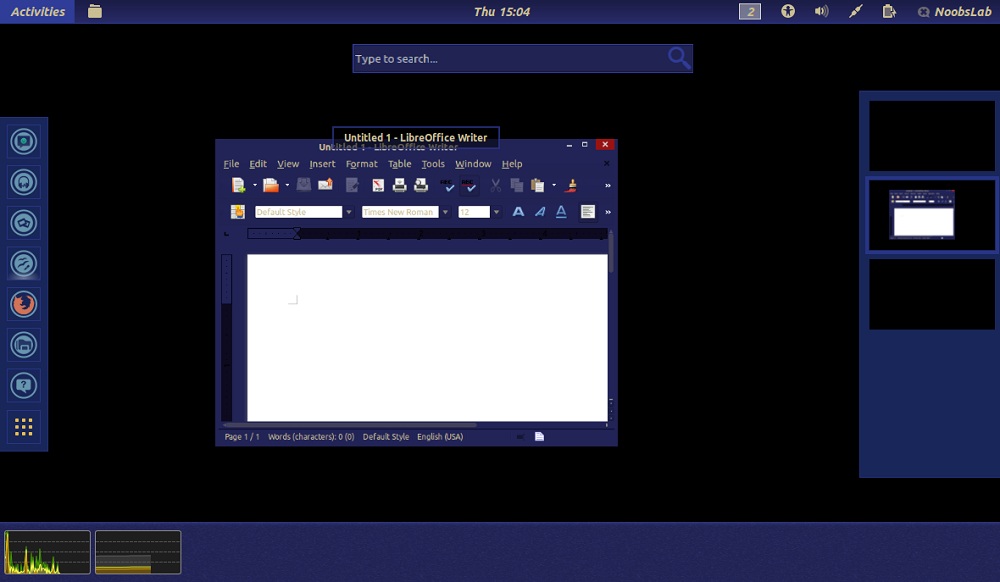
eOS Gnome Shell Theme for Ubuntu/Linux Mint/other Ubuntu derivatives

eOS theme is designed by 0rax0 developer on deviantart but he released last version for Gnome Shell 3.6, Then zagortenay333 continue to work on this theme and made it compatible with Gnome Shell 3.8. Actually developer didn't stop his work but he looking for someone support, he mentioned that it's next version will be for Gnome Shell 3.10.  Basically eOS theme gives taste of Elementary desktop. Developer ported a lot of features from DanRabbit's mockups and actual eOS parts, like: Plank, Pantheon Shell, Wing Panel. Also developer aim is to make most accurate elementary theme.

eOS Gnome Shell Theme for Ubuntu/Linux Mint/other Ubuntu derivatives

eOS Gnome Shell Theme for Ubuntu/Linux Mint/other Ubuntu derivatives

eOS Gnome Shell Theme for Ubuntu/Linux Mint/other Ubuntu derivatives

eOS Gnome Shell Theme for Ubuntu/Linux Mint/other Ubuntu derivatives

eOS Gnome Shell Theme for Ubuntu/Linux Mint/other Ubuntu derivatives

eOS Gnome Shell Theme for Ubuntu/Linux Mint/other Ubuntu derivativeseos theme
Theme tested on all listed versions.

To install eOS theme on Ubuntu/Linux Mint open Terminal (Press Ctrl+Alt+T) and copy the following commands in the Terminal:


That's it
Credits: eOS-3.8, eOS

Monday, September 23, 2013

Install Lightdm Display Manager in Linux Mint 15 'Olivia'/Linux Mint 14 'Nadia'

LightDM is an X display manager that aims to be light, fast, extensible and multi-desktop. LightDM is a cross-desktop display manager that aims is to be the standard display manager for the X.org X server. The most user visible aspect of the display manager is the login screen, however it also facilitates remote logins using the XDMCP protocol. You can find here for Linux Mint 13.
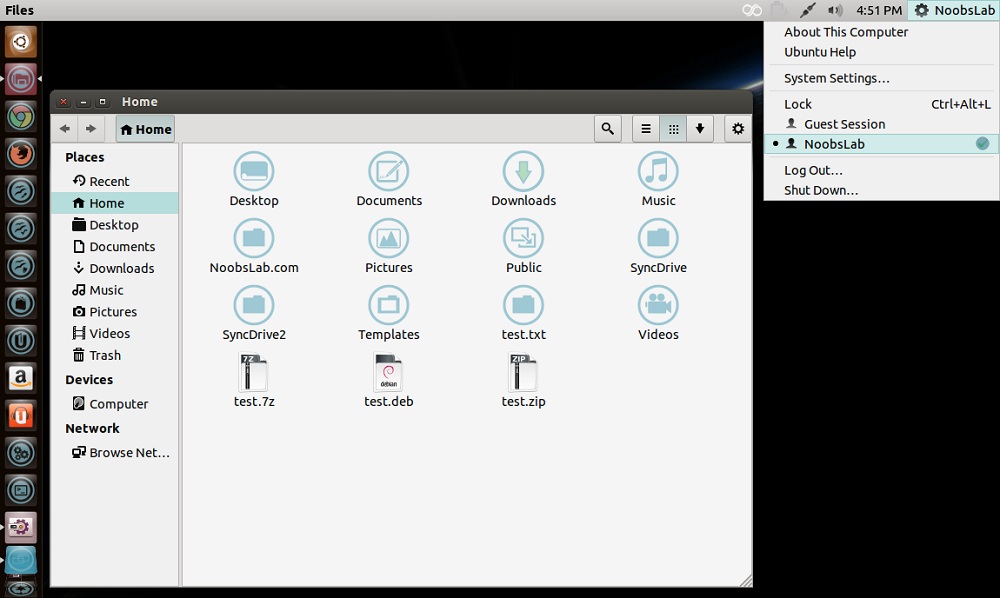
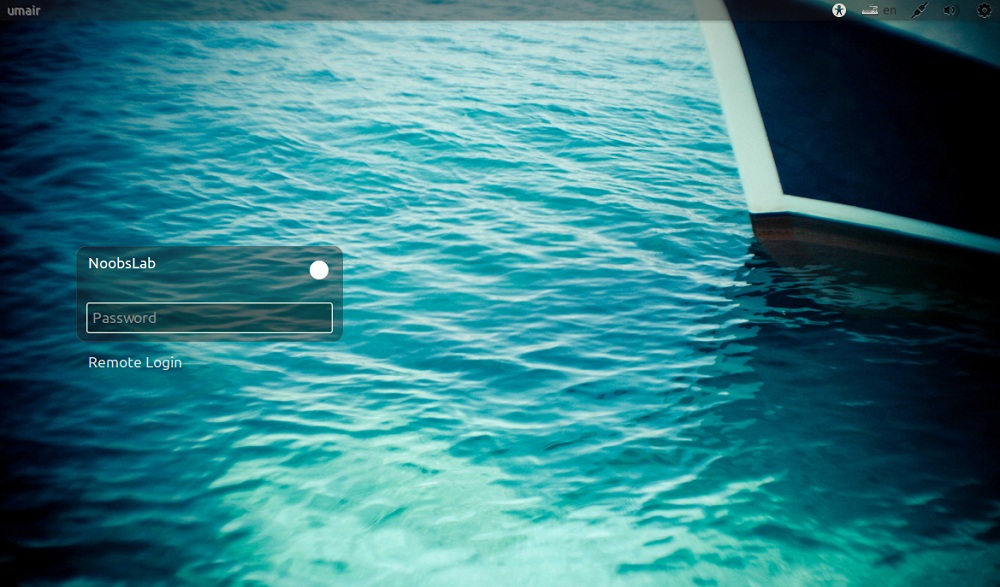
Many People like LightDM login screen, they prefer LightDM instead of other login display managers. Linux Mint 15/14 comes with MDM as default login manager but you can change it easily with LightDM. First of all you will install LightDM then some tweaks for LightDM like removing guest account, Ubuntu logo and white dots. So lets start!
Install Lightdm Display Manager in Linux Mint 15 'Olivia'/Linux Mint 14 'Nadia'
1.) To install LightDM in Linux Mint 15/14 open Terminal (Press Ctrl+Alt+T) and copy the following command in the Terminal:

Terminal Commands:
sudo apt-get install lightdm gnome-settings-daemon indicator-session unity-greeter ubuntu-mono light-themes unity- gnome-control-center-
During installation terminal will ask to choose Display Manager, So select "LightDm" using 'Tab' and 'Enter' keys.
Install Lightdm Display Manager in Linux Mint 15 'Olivia'/Linux Mint 14 'Nadia'
2.) Now remove white dots from LightDM
Enter following commands in the Terminal to remove white dots from login screen:

Terminal Commands:
sudo xhost +SI:localuser:lightdm
sudo su lightdm -s /bin/bash
gsettings set com.canonical.unity-greeter draw-grid false
3.) Remove Ubuntu Logo from LightDM
Terminal Commands:
sudo rm /usr/share/unity-greeter/logo.png
4.) Disable Guest Account from LightDM If you don't want Guest account you can easily remove it, Enter following command it will open file in terminal.
Terminal Commands:
sudo gedit /etc/lightdm/lightdm.conf
Now add this line at the end of file.
allow-guest=false
Then reboot and you will be with LightDm.

5.) Install Ubuntu-Tweak to change background of 'Lightdm' copy following commands in the Terminal:
Terminal Commands:
sudo add-apt-repository ppa:tualatrix/ppa
sudo apt-get update
sudo apt-get install ubuntu-tweak
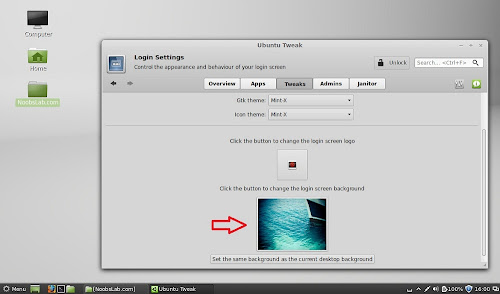
Go to Tweaks and select Login Settings, Here change GTK + Icon Theme to Mint and choose background for 'Lightdm '.
Install Lightdm Display Manager in Linux Mint 15 'Olivia'/Linux Mint 14 'Nadia'
Revert back to MDM (Mint Display Manager)
If you want to get back MDM simple enter following command in terminal and choose MDM option in Terminal:
Terminal Commands:
sudo dpkg-reconfigure mdm
That's it

Saturday, September 14, 2013

Trevilla themes and icons for Ubuntu 13.10/13.04/12.10/12.04/Linux Mint/other Ubuntu derivatives

Trevilla themes set contains various flavors which is made by ninorpanama. Developer mentioned themes are mostly like metro-style. These themes are designed to work with GTK3/2. Trevilla themes are available in 5 different variants Trevilla-Dark, Trevilla-White, Trevilla-White-Orange, Trevilla-White-Blue. This update brings compatibility with latest Ubuntu 13.10 Saucy and two icon sets.

1: Trevilla Icons

These icons are well designed and more like metro style to nice look with Trevilla themes. These icons can be used with any kind of dark and light themes.


Trevilla themes and icons for Ubuntu 13.10/13.04/12.10/12.04/Linux Mint/other Ubuntu derivatives
To install Trevilla-icons in Ubuntu/Linux Mint open Terminal (Press Ctrl+Alt+T) and copy the following commands in the Terminal:


Terminal Commands:
sudo add-apt-repository ppa:noobslab/icons
sudo apt-get update
sudo apt-get install trevilla-icons

2: Trevilla Themes
Trevilla themes and icons for Ubuntu 13.10/13.04/12.10/12.04/Linux Mint/other Ubuntu derivatives
To install Trevilla-themes in Ubuntu/Linux Mint open Terminal (Press Ctrl+Alt+T) and copy the following commands in the Terminal:


Terminal Commands:
sudo add-apt-repository ppa:noobslab/themes
sudo apt-get update
sudo apt-get install trevilla-themes

That's it 
Source: Trevilla

Neptune Theme for Ubuntu 13.10/13.04/12.10/Linux Mint/other Ubuntu Derivatives (GTK + Gnome Shell)

Neptune blue is combination of two themes Zen-suite and Boje. Basically developer modified GTK version of zen-suite and metacity of boje theme to make this theme for his use but he decided to supply to public, if someone else like it. This theme is compatible with GTK 3.8/3.6 and Gnome Shell 3.8/3.6. I tested this theme in Ubunttu 13.04 with latest GTK and Gnome Shell 3.8, I couldn't found any bug yet in this theme but if you found any go to source link and report to developer.
To install Neptune theme on Ubuntu/Linux Mint open Terminal (Press Ctrl+Alt+T) and copy the following commands in the Terminal:


Terminal Commands:
sudo add-apt-repository ppa:noobslab/themes
sudo apt-get update
sudo apt-get install neptune-theme

That's it
Source: Neptune